Extract Tables from PDF to Excel Online: Turn PDF Rows into Usable Spreadsheets Faster
To extract tables from PDF to Excel online, keep only the pages with the table if possible, OCR scanned PDFs first, then convert the cleaned file and review headers, rows, totals, and number formats before you trust the sheet.
The best results usually come from machine-readable PDFs with consistent columns, while scans, repeated headers, and wrapped cell text may need a quick cleanup pass after export.
That is the practical answer people actually need. The hard part is usually not clicking “convert.” It is getting a spreadsheet that still makes sense once the PDF's visual layout disappears. A table can look perfectly tidy on a page and still arrive in Excel with split columns, duplicated headings, or totals that turned into plain text. A calmer workflow solves most of that: isolate the right pages, OCR when needed, convert once, then validate the few fields that matter.
Fastest practical path: isolate the table pages, OCR them if needed, then use LifetimePDF's PDF to Excel workflow and review the exported spreadsheet before you import or share it.
In a hurry? Jump to the 6-minute online workflow.
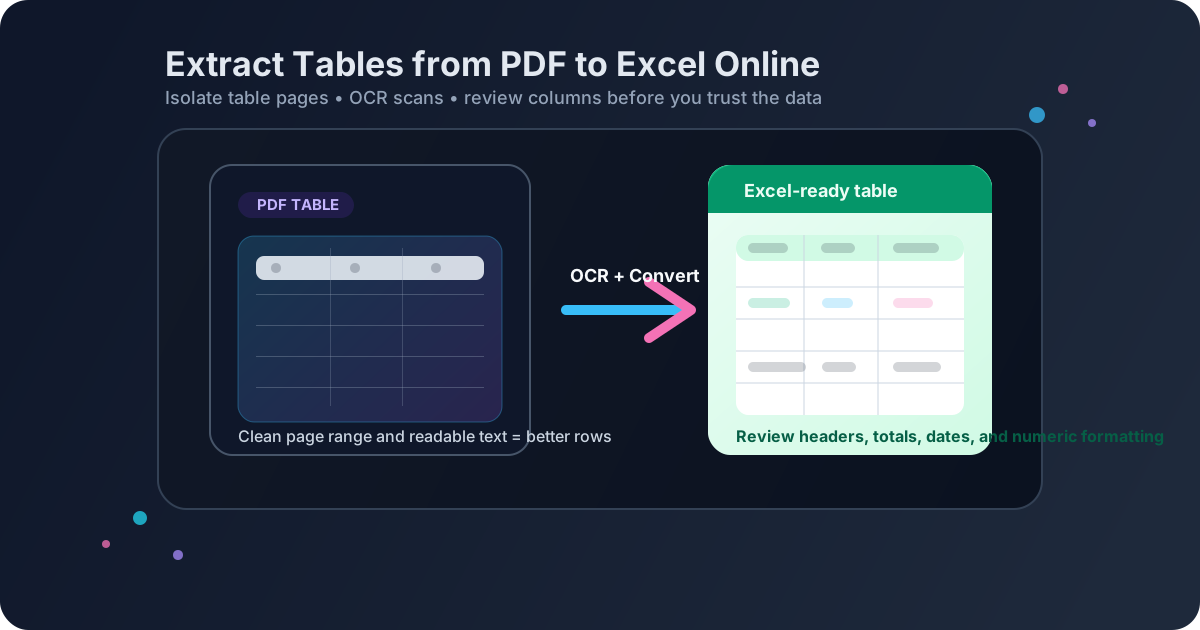
Table of contents
- Quick start: the 6-minute online workflow
- When an online PDF-to-Excel workflow works best
- Step-by-step: extract tables from PDF to Excel online
- How to improve extraction accuracy before converting
- Scanned PDFs, photos, and OCR
- What to check in Excel before you trust the data
- Excel vs CSV for extracted PDF tables
- Related LifetimePDF tools and guides
- FAQ
Quick start: the 6-minute online workflow
If the table is fairly clean and you only need a usable spreadsheet, this is the fastest workflow:
- If the table is buried inside a long report, first use Extract Pages so you convert only the table section.
- If you cannot highlight the text, run OCR PDF before anything else.
- Open PDF to Excel and upload the cleaned PDF.
- Download the spreadsheet and immediately review the header row, column breaks, totals, and date formats.
- Fix only the cells that matter before sharing, importing, or analyzing the data.
When an online PDF-to-Excel workflow works best
Online conversion works best when the PDF is already close to structured data: clear columns, readable text, and no unnecessary page furniture getting in the way. That describes more files than people think.
Usually good candidates
- Digitally generated reports with stable column widths
- Invoices, statements, price lists, and schedules
- Research appendices with one main table per page
- Exported dashboards and system-generated summaries
Usually harder cases
- Blurry scans or phone photos of printed tables
- Tables mixed into two-column page layouts
- Rows with long wrapped descriptions and merged cells
- Pages cluttered with repeated headers, footers, and side notes
Even the harder cases can still be worth converting online. The key is to treat the PDF like an input that benefits from a little prep. One quick OCR pass or one quick page extraction often does more than trying five different converters on the same messy file.
Step-by-step: extract tables from PDF to Excel online
Here is the practical browser workflow for most table-heavy PDFs:
1. Isolate the table pages first
If the table you want lives on pages 14 through 18 of a 90-page report, convert those pages instead of the whole file. That reduces the chance that title pages, charts, appendices, or narrative text interfere with table detection.
2. Decide whether the PDF is really text or just a picture of text
Try selecting a few values inside the table. If you cannot highlight them cleanly, the converter is probably guessing from an image. OCR first, then convert.
3. Convert the cleaned file to Excel
Upload the PDF to PDF to Excel and export the spreadsheet. For most ordinary reports, line-item tables, and statements, this gets you close enough to finish with a short review instead of manual retyping.
4. Review the spreadsheet like a human, not like a machine
Look for the places converters commonly struggle: repeated header rows, broken date columns, totals sitting under the wrong column, negative numbers turned into text, and wrapped descriptions that shifted part of a row sideways.
5. Clean only the cells that affect the next step
If the spreadsheet is for quick analysis, fix the totals, dates, and numeric columns first. If it is for client delivery, spend more time polishing headers and spacing. The goal is not perfection for its own sake. The goal is reliable data for the job you actually need to do next.
Good companion workflow: extract the right pages, OCR if needed, then convert once instead of repeatedly pushing the same messy full PDF through different tools.
How to improve extraction accuracy before converting
Small prep steps usually beat repeated retries. If a table conversion comes out messy, the cause is often visible in the source PDF:
- Repeated page headers: separate them from the data if possible.
- Wrapped row labels: expect long descriptions to need minor cleanup afterward.
- Sideways pages: rotate them before converting.
- Mixed layouts: split charts, cover pages, and table pages into separate PDFs.
- Tight or unclear columns: understand that visually crowded tables are harder for any converter to interpret perfectly.
The practical mindset is this: you are helping the converter understand the page. A smaller, cleaner PDF is often the difference between “usable in two minutes” and “why did this explode into twelve columns?”
Scanned PDFs, photos, and OCR
Scanned tables can still convert well, but only if the scan is readable enough to become text first. OCR is what gives the converter something more meaningful than pixels.
Scans that usually work better
- Straight pages with readable contrast
- Consistent lighting and no motion blur
- Clear printed fonts and visible row boundaries
- Minimal handwriting on top of the table
Scans that usually cause trouble
- Dark shadows near the page edge
- Curved phone photos of bound documents
- Tiny text or faint dot-matrix printing
- Tables with stamps, highlights, or overlapping notes
What to check in Excel before you trust the data
Exported tables should be reviewed before they become “real” data in a report, model, import, or client handoff. A quick validation pass catches most costly mistakes.
| Check this | Why it matters |
|---|---|
| Header names | One wrong header can make filters, formulas, or imports fail quietly. |
| Row alignment | Split descriptions or shifted values can put numbers under the wrong column. |
| Dates and decimals | Excel may treat them as text, which breaks sorting, formulas, and summaries. |
| Totals and subtotals | These are the cells most likely to matter in downstream analysis or reporting. |
| Repeated headers or blank rows | These often appear when one table spans multiple PDF pages. |
If the spreadsheet is going into another system, test one import with a small sample first. That is the quickest way to catch text-formatted numbers, stray spaces, or duplicated rows before they become someone else's problem.
Excel vs CSV for extracted PDF tables
Once the data is out of the PDF, the next question is usually whether you should keep it in Excel or flatten it to CSV.
- Choose Excel if you need multiple sheets, filters, formulas, formatting, comments, or easier manual cleanup.
- Choose CSV if the next step is database import, scripting, bulk upload, or a system that wants plain rows and columns.
Many people do both: review and fix the extraction in Excel first, then export a final CSV once the headers and numbers are trustworthy.
Related LifetimePDF tools and guides
A clean table extraction workflow often uses one or two supporting steps before the actual conversion:
- Extract Pages to isolate only the table section from a long report.
- OCR PDF when the source is scanned or image-only.
- Extract Tables from PDF to Excel if you want the broader non-browser version of the workflow.
- Extract Tables from PDF to CSV when your destination system wants plain text rows and columns rather than an XLSX workbook.
Need a cleaner export? Start with the page-isolation and OCR steps first, then run the conversion when the input file is smaller and more readable.
FAQ
How do I extract tables from PDF to Excel online?
Keep only the pages with the table if possible, OCR the file first if it is scanned, then upload it to a PDF-to-Excel converter and review the exported spreadsheet for header breaks, row shifts, totals, and numeric formatting.
Can I extract a scanned PDF table into Excel online?
Usually yes, but OCR makes a big difference. Straight, readable scans with clear text and visible row boundaries convert much better than blurry photos or dark photocopies.
Why did my PDF table split into messy Excel columns?
The common causes are repeated page headers, wrapped descriptions, merged cells, scan quality problems, or extra page content around the table. Isolating the table pages often improves the result immediately.
Should I keep the result in Excel or export CSV?
Keep it in Excel if you still need cleanup, filters, or formulas. Export CSV after the headers and numeric columns are correct and you need a simpler import-friendly file.
What should I check before trusting the extracted data?
Review header names, row alignment, dates, totals, decimals, repeated headings, and cells that should be numeric but arrived as text. A one-minute validation pass is much cheaper than discovering the mistake later.