Compress PDF for Infor CloudSuite: Keep Invoices, Receipts, and Supporting Documents Small Without Slowing Review
To compress a PDF for Infor CloudSuite, upload the final invoice, receipt packet, purchase-order backup, receiving document, or approval PDF to LifetimePDF's Compress PDF tool, start with Medium compression, and keep the smaller copy only if supplier names, invoice numbers, dates, tax lines, totals, and approval details still read clearly.
For most Infor CloudSuite workflows, under 2MB is a strong target for text-heavy invoices and finance support, while scan-heavy receipt bundles, receiving paperwork, and mixed ERP attachments usually fit better around 2MB to 5MB after light cleanup.
Infor CloudSuite attachments usually become heavy for ordinary reasons. A clean invoice picks up receipt scans, proof-of-delivery pages, PO backup, statement excerpts, screenshots, or old approval pages nobody trimmed. The best outcome is not the tiniest PDF possible. It is a smaller file that still feels dependable when AP, procurement, accounting, or audit teams reopen it later and need one date, one total, or one reference to be unmistakable.
Fastest path: use LifetimePDF's Compress PDF tool at Medium, then clean up extra pages, split oversized packets, or run OCR only if the file is still heavier than the next Infor CloudSuite step really needs.
Need the short version? Jump to Quick start: compress an Infor CloudSuite PDF in about 2 minutes.
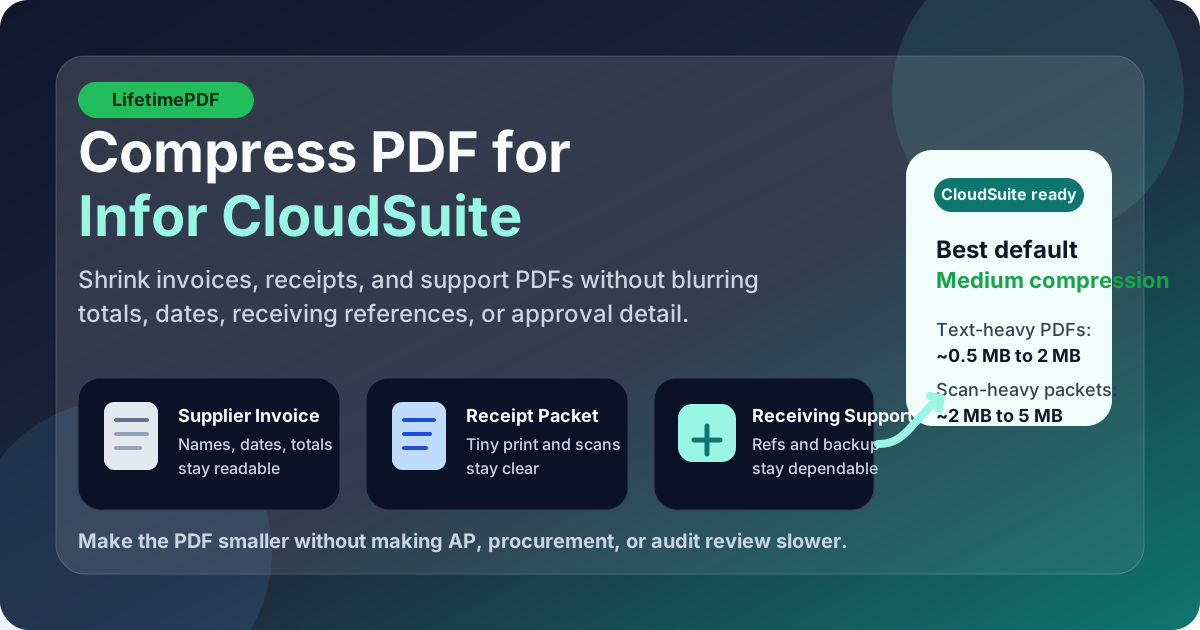
Table of contents
- Quick start: compress an Infor CloudSuite PDF in about 2 minutes
- Why Infor CloudSuite PDFs get bulky
- What file size should you aim for?
- Which compression level should you choose?
- Step-by-step: shrink an Infor CloudSuite PDF with LifetimePDF
- Best approach for common Infor CloudSuite document types
- What to clean up before compressing harder
- How to keep finance details readable
- Workflow habits that reduce PDF bloat
- Related LifetimePDF tools and useful reading
- FAQ (People Also Ask)
Quick start: compress an Infor CloudSuite PDF in about 2 minutes
If your real goal is simply make this Infor CloudSuite PDF smaller so it is easier to upload, review, or archive, this workflow is usually enough:
- Start with the invoice PDF, receipt bundle, purchase-order backup, receiving packet, statement page, or approval attachment you actually plan to keep.
- Open Compress PDF.
- Choose Medium compression first.
- Download the smaller result and compare the new file size.
- Check the fragile details once: supplier names, invoice numbers, dates, quantities, tax lines, totals, receiving references, and approval notes.
- If the file came from a scan or the text is not selectable, run OCR PDF.
- If the packet still feels bulky, remove duplicate pages, crop dead space, or split the appendix before trying stronger compression.
Why Infor CloudSuite PDFs get bulky
Infor CloudSuite sits in the kind of workflow where a PDF often stops being a simple attachment and becomes evidence somebody has to validate. That could be a supplier invoice, receipt packet, proof of delivery, receiving document, statement page, purchasing attachment, or approval support file. Each page may look reasonable by itself. The size problem usually appears after exporting, scanning, merging, printing, emailing, and saving the same material more times than the workflow really needed.
Smaller PDFs help because they reduce friction where timing already matters. They open faster during AP review, upload more smoothly when several supporting files move in the same window, and are easier to revisit when someone needs to confirm one supplier, one date, one quantity, or one approval note later. The goal is not to flatten the evidence until it looks weak. The goal is to remove wasted image weight while keeping the document trustworthy.
- Faster attachment handling: lighter files move through upload and review steps with less drag.
- Smoother validation: smaller PDFs are easier to open when someone needs to check supplier names, invoice numbers, dates, tax lines, totals, or receiving details.
- Less scan waste: phone captures, paper invoices, and rescans often include shadows, empty borders, and duplicate backs nobody needs.
- Cleaner archives: smaller files are easier to resend, reopen, and store without carrying pointless bloat forward.
- Better downstream prep: leaner PDFs are easier to OCR, crop, split, extract from, or compare if the workflow changes later.
What file size should you aim for?
There is no single magic number for every Infor CloudSuite workflow, so practical ranges are more useful than chasing one exact limit. You want a file that stays easy to upload, open, and trust when someone is checking supplier details, invoice dates, tax amounts, totals, quantities, or approval evidence.
| Document type | Practical target | What matters most |
|---|---|---|
| Text-heavy invoice, statement, or normal support PDF | About 0.5MB to 2MB | Supplier names, invoice numbers, dates, tax lines, and totals |
| Receipt packet, PO backup, or mixed support bundle | About 1MB to 3MB | Merchant names, dates, line-item values, and small annotations |
| Scan-heavy receiving paperwork or legacy support | About 2MB to 5MB | Fine print, stamps, signatures, and faint printed detail |
| Anything above 5MB | Usually needs cleanup first | At that size, duplicate pages, empty borders, or unnecessary appendix content are often the real issue |
The right range depends on what the next reviewer truly needs. If the PDF exists to prove a supplier, a date, a tax amount, a receiving event, or an approval trail, protect those details first. The useful goal is not a dramatic percentage reduction. It is a file that feels easier to work with in a real ERP workflow.
Which compression level should you choose?
The easiest mistake is jumping straight to the strongest setting because the file feels annoyingly large. That is how you turn a clean invoice or support packet into soft line items and fuzzy totals. For most Infor CloudSuite PDFs, a measured order works better:
- Low compression: useful when the PDF is already fairly clean and only needs a light trim.
- Medium compression: the best default for most invoices, receipt packs, PO support, AP backup, and approval-ready finance PDFs.
- High compression: worth testing only after removing duplicate pages, cropping scan waste, or splitting an oversized packet.
Step-by-step: shrink an Infor CloudSuite PDF with LifetimePDF
- Save the final working copy first. Use the file you actually plan to attach or archive, not an early draft full of pages nobody needs anymore.
- Open Compress PDF.
- Upload the file. This could be an invoice PDF, receipt bundle, PO backup packet, receiving document, statement page, or approval attachment.
- Start with Medium compression. It is usually the safest first pass for Infor CloudSuite support files.
- Download the smaller result. Check the new size and decide whether it already feels easier to handle.
- Preview the weak spots. Look at supplier names, invoice numbers, dates, quantities, tax lines, totals, receiving references, approval notes, and any faint scan detail.
- Use OCR or structure fixes only if needed. If the file is still too heavy, run OCR PDF, remove duplicate pages, extract the useful section, or split the appendix before trying a stronger setting.
Useful sequence: compress first, then clean the packet structure. In finance workflows, the oversized file is often carrying too much baggage, not too little compression.
Best approach for common Infor CloudSuite document types
1. Supplier invoices and AP support
These usually compress well because the most important information is text-based. Medium compression is often enough. The real risk is not losing a logo. It is softening the invoice number, due date, tax lines, remit details, or final total just enough to slow the next review.
2. Receipts and expense-report backup
Receipt-heavy PDFs carry a lot of wasted image data. If the packet still feels huge after one pass, the fix is often cleanup rather than harsher compression. Remove blank backs, crop dead space, and keep only the pages the reviewer actually needs. OCR is especially helpful here because receipts often come back later when somebody needs to search by vendor, amount, or date.
3. Purchasing, receiving, and operational support
These packets often mix forms, screenshots, statements, and supporting pages from several steps in the process. Medium compression is usually the safer starting point. If the file stays heavy, remove duplicate scans and blank backs before pushing harder, because those pages often create more bloat than the real document content.
4. Statement pages and exception packets
These PDFs often combine screenshots, exported reports, invoice pages, approvals, and explanatory notes into one bundle. Medium compression is usually the best first move. If the packet is still too large, split unrelated support into smaller files instead of forcing one oversized PDF to carry everything.
5. Legacy scanned documents and approval records
These are often the heaviest files and the easiest to damage with aggressive compression. Clean margins, delete blank pages, and run OCR before pushing compression harder. If a stamped approval or handwritten note matters later, protect it early.
What to clean up before compressing harder
When an Infor CloudSuite PDF stays heavy after one reasonable compression pass, the issue is often packaging rather than image density. Try these in order:
- Delete repeated or blank pages. This fixes more than people expect in finance support packets.
- Extract only the pages the next reviewer needs. A focused six-page packet is usually better than a thirty-page archive dump.
- Split the appendix. Keep the main support in one PDF and the backup evidence in another.
- Crop empty borders and background. Scan waste adds size without adding proof.
- Run OCR on image-only paperwork. Searchability matters long after the first upload.
- Only then try stronger compression. By that point, the file is usually leaner already.
How to keep finance details readable
Before you keep the compressed copy, check the weakest details on the page rather than the strongest ones. Headings almost always survive. The useful details are what quietly fail.
- Supplier names and remit details: confirm they are still crisp.
- Invoice numbers and dates: especially on scans and exported statement excerpts.
- Tax lines, subtotals, and totals: numbers should still read cleanly without guesswork.
- Quantities or receiving references: zoom in on the densest section once.
- Approval comments or document references: these are easy to lose when the original screenshot or scan was weak.
- Handwritten marks, stamps, or signatures: protect them if they matter later.
A 20-second review saves far more time than rebuilding a packet later because somebody could not read one number or one note that mattered.
Workflow habits that reduce PDF bloat
- Export once from the cleanest source available. Reprinting and rescanning usually adds size without adding value.
- Trim before you merge. It is easier to keep one support packet clean than to repair a giant combined PDF later.
- Separate summary from appendix. Not every reviewer needs every page.
- Use OCR on paper-origin files. Searchable PDFs age better in finance archives.
- Review one sample page before forwarding everything onward. Catching blur early is cheaper than resending a packet later.
Related LifetimePDF tools and useful reading
Infor CloudSuite document prep often turns into a few follow-on tasks. These tools usually pair well with compression:
- Compress PDF for the first size-reduction pass.
- OCR PDF for scanned invoices, receipts, and support documents.
- Extract Pages when only part of the packet needs to travel.
- Delete Pages to remove duplicate or blank support pages.
- Split PDF when one packet is doing two jobs at once.
- Crop PDF to trim dead scan borders.
- PDF Metadata Editor to clean hidden title and document properties before distribution.
If you want adjacent reading, these guides fit the same workflow family: upload-focused Infor CloudSuite guide, Compress PDF for Business Central, Compress PDF for NetSuite, Compress PDF for Oracle E-Business Suite, Compress PDF for SAP S/4HANA Cloud, and Compress PDF for IFS Cloud.
Bottom line: if the Infor CloudSuite PDF is too large, start with Medium compression, protect the finance details that matter, and clean the packet structure before you force the file any harder.
FAQ (People Also Ask)
How do I compress a PDF for Infor CloudSuite?
Upload the Infor CloudSuite-ready PDF to a PDF compressor, start with Medium compression, and keep the smaller copy only after checking supplier names, invoice numbers, dates, totals, and approval details. For most ERP support PDFs, Medium is the safest starting point because it reduces file size without weakening review clarity.
What file size should I aim for with Infor CloudSuite PDFs?
Text-heavy invoices, statement pages, and standard support files usually work well under 2MB. Receipt bundles, receiving packets, and scan-heavy support often land better around 2MB to 5MB as long as the smallest useful details remain easy to read.
Will compression make invoice totals or receiving references blurry?
It can if you compress too aggressively. That is why Medium compression is usually the best first move. Always review invoice numbers, dates, quantities, tax lines, totals, receiving references, and approval notes before you keep the smaller file.
Should I run OCR on scanned Infor CloudSuite attachments?
Usually yes if the PDF came from a scanner or phone camera and the text is not selectable. OCR makes finance PDFs easier to search, validate, and reuse later during approvals, audit checks, reconciliations, and close work.
What if the PDF is still too large after compression?
Delete duplicate pages, crop empty scan borders, split one oversized packet into summary and appendix files, or extract only the pages the next reviewer actually needs. In many Infor CloudSuite workflows, better packet structure helps more than stronger compression.